Rule building
By default, everything Site Builder places on the board shows itself to every visitor who can view the page. Display rules change that: a rule is a list of conditions about the visitor — the user groups they belong to, their device, their country, the page they are on, the date and time — and the target shows only when a rule matches them. When a target has rules and the visitor matches none, the target stays hidden.
A rule attaches to one of three targets:
- a position — its rule governs everything the position holds;
- a cell — the rule governs that cell: its banner or widget and any cells nested inside it;
- an item — a banner or a widget has rules of its own, separate from its cell's.
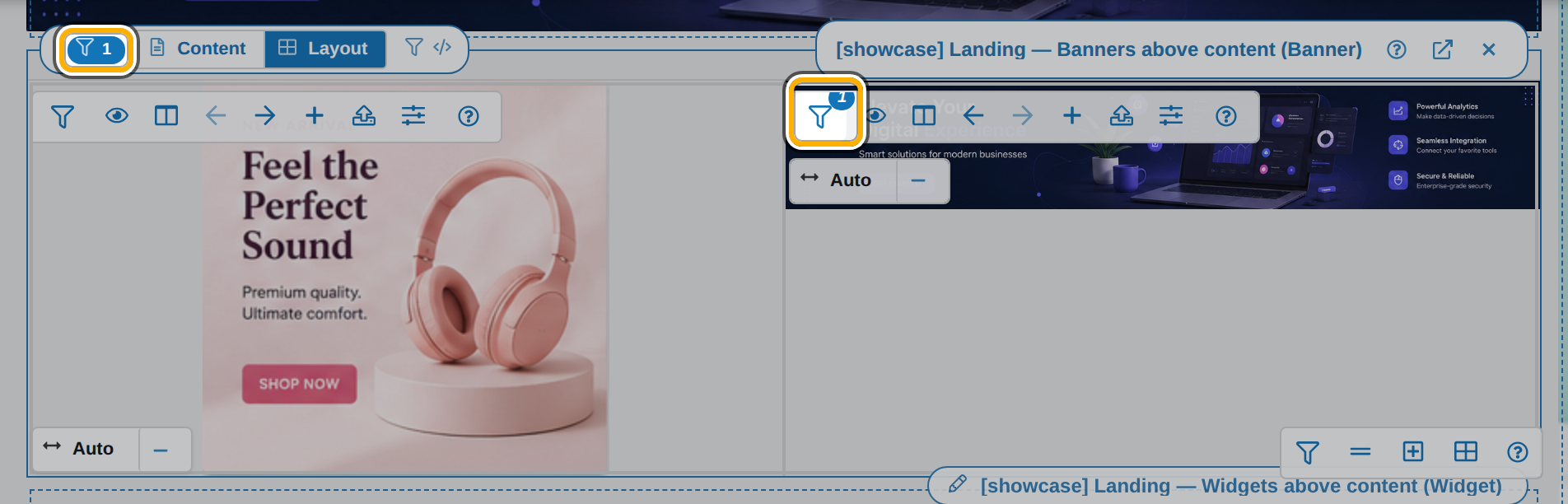
Each level opens its rules from its own control. In Content mode, a position's rules open from the filter icon on its header (Display rules of this position) and an item's from the filter icon on its toolbar (Display rules of this item):

A cell's rules are reached from Layout mode: the filter icon on the cell's toolbar (Display rules of this cell) opens the editor on the cell. Once the cell has rules, the icon carries their count, and in Content mode a badge on the cell opens them too.

Rule sets stack, and every set over a target must match. An item placed in a cell inside a position answers to three sets — the position's rules, the cell's rules and the item's own — and shows only to a visitor who matches all of them. A visitor who misses any one set does not see the item.
Rules are edited on the board itself, in manage mode. This page walks through opening the editor at each level, building the conditions, checking who a rule reaches before saving, and the device-aware case of hiding a parent cell on phones.
Ask the assistant
"Show this banner only to logged-in members" — the assistant stages the rule set the same way the dialog below builds it. See The assistant.
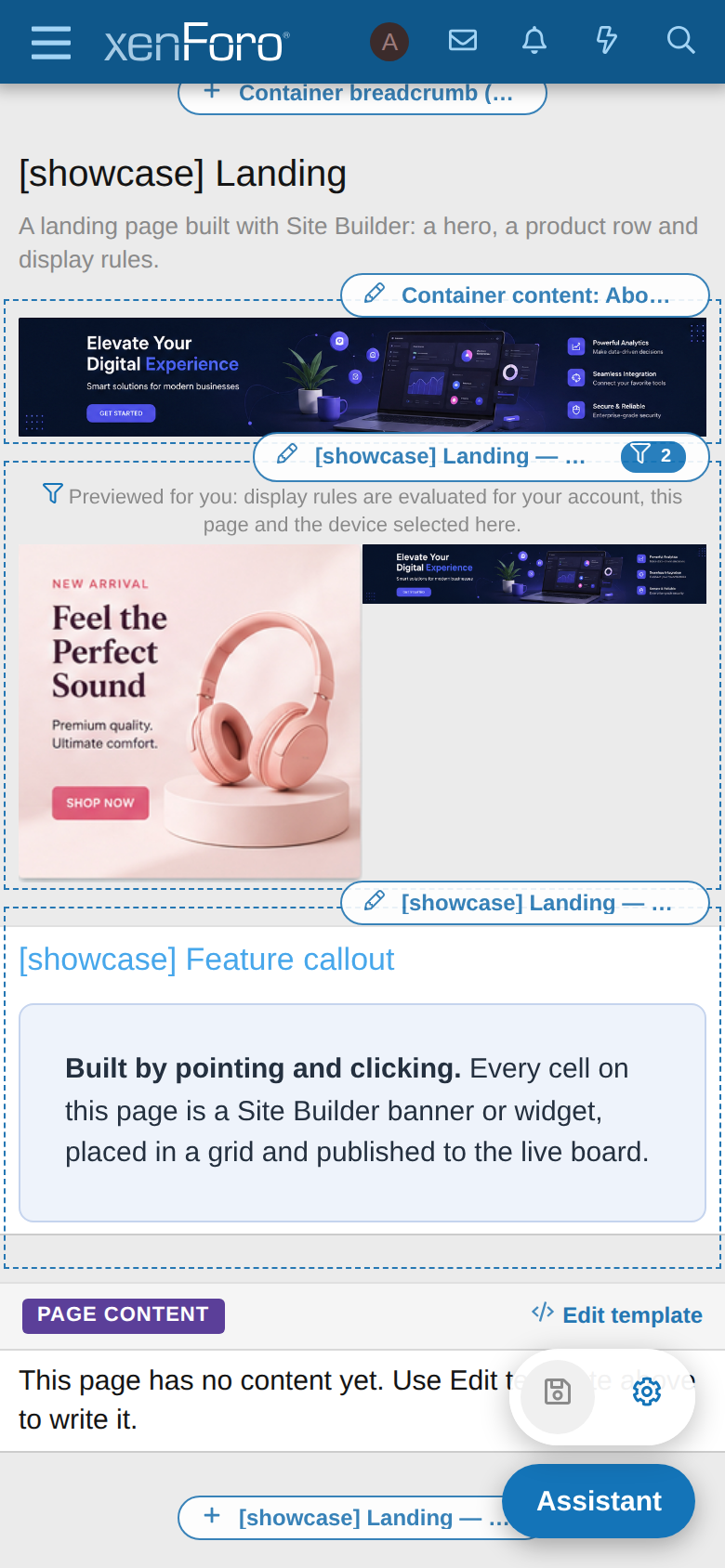
The editor works on mobile too:
Where rules attach
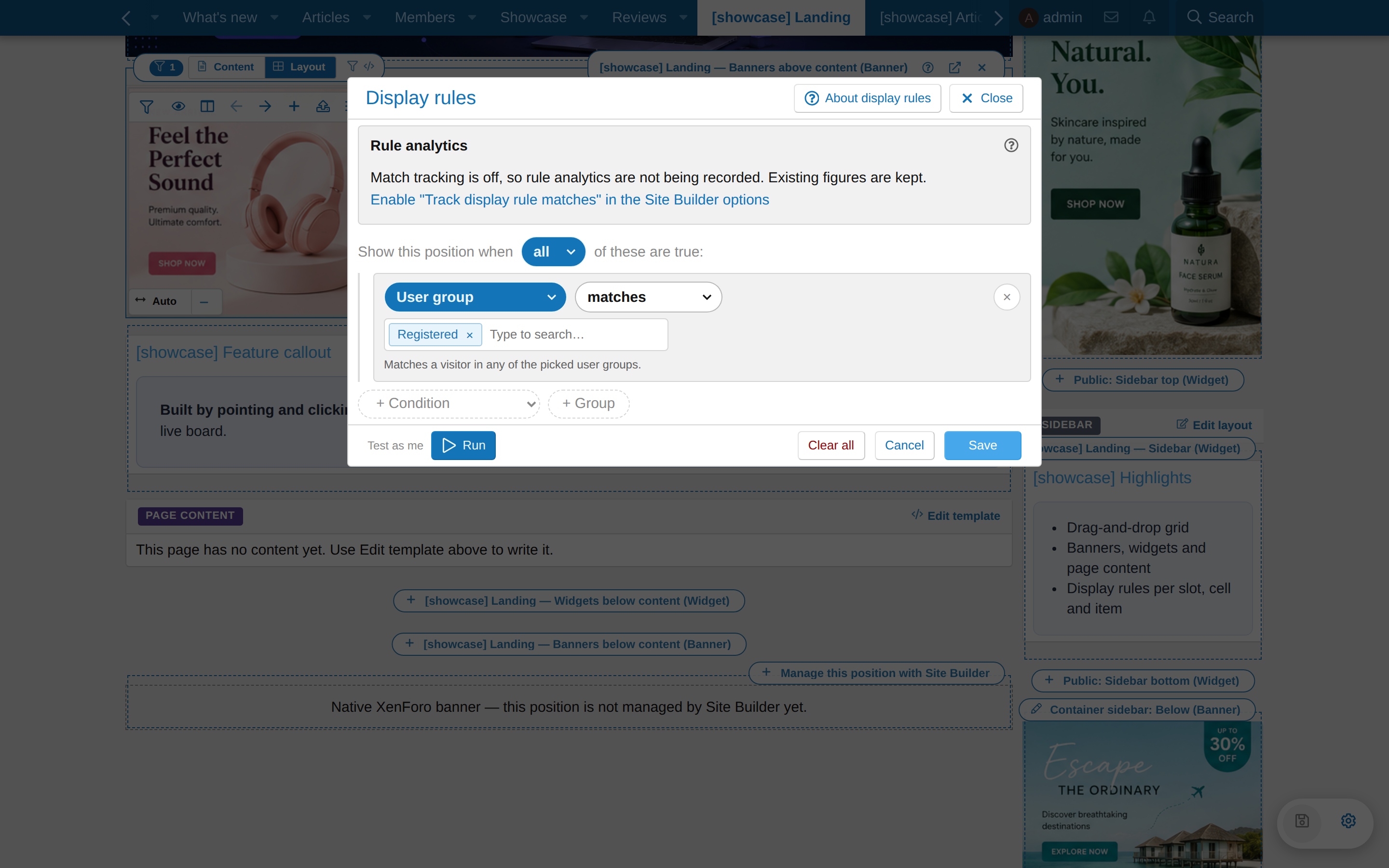
A position's rules live on its header. A position that has rules wears the badge — press it. A position without rules has no badge: press the header's filter icon — a funnel (Display rules of this position) — instead. When the header is too narrow to fit it, it moves behind the … icon (More actions for this position) and reads Display rules there. Either way the editor opens on the position's rules:
- Press the badge, or the header's filter icon when there is no badge.
- Fill the conditions and press Save, then Publish the position (see Drafts, publish and undo).
The rule below shows a position's banners to registered members only:
A cell's rules open from the filter icon on its toolbar:
- In Layout mode, press the filter icon on the cell's toolbar (Display rules of this cell). When the cell has rules, it carries their count — Display rules of this cell (1) — and in Content mode the badge on the cell opens the same editor.
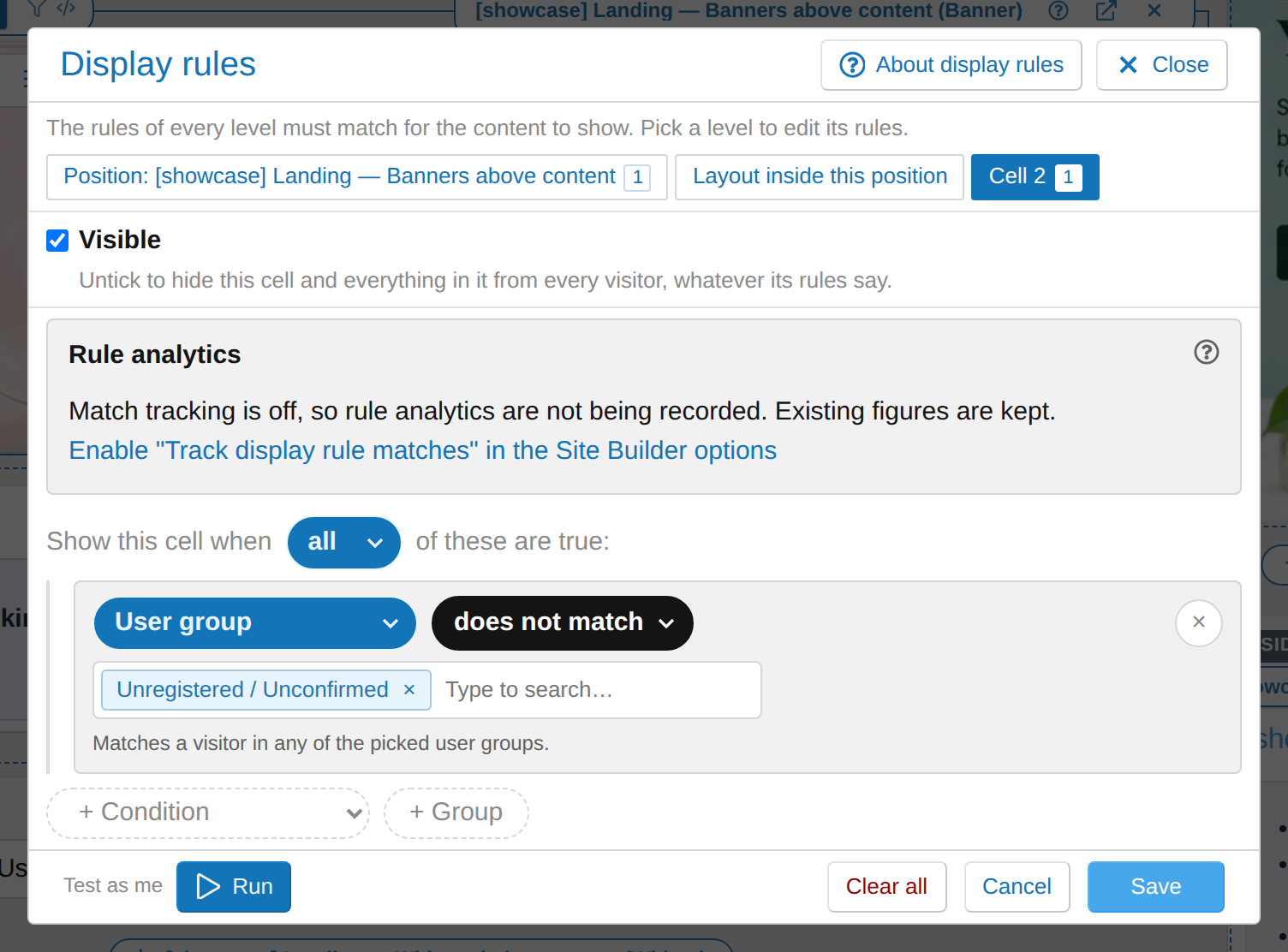
- The editor opens on the cell's rules. At its top, Visible switches the cell off and on: unticked, the cell and everything in it are hidden from every visitor, whatever its rules say. A change to Visible is saved at once, as a change in the position's draft that Undo takes back.
An item's rules are reached from the filter icon on the item's toolbar:
- In Content mode, look at the placed item's toolbar for the filter icon (Display rules of this item). When the item carries rules, the icon highlights and shows the count, and the badge beside the item shows it too.
- Press the icon — the editor opens on the item's rules.

Every level at once. Content shows only where the rules of every level match: the position's, each cell's from the outer frame down, and the item's. Opened from a cell's badge or an item's filter icon, the editor lists those levels at its top — Position: …, Layout inside this position, Cell 2 › 1, Item: … — with the one you opened marked. Pick another level to edit its rules in the same editor; unsaved changes are asked about first.
Building a rule
An editor with no rules yet says so and offers a single button:
No display rules configured. This content is always shown. [Add rule]
Press Add rule and the editor gives you a condition row to fill. Rules on a position or a cell that already exist open straight into them; press Clear all in the footer to start over.
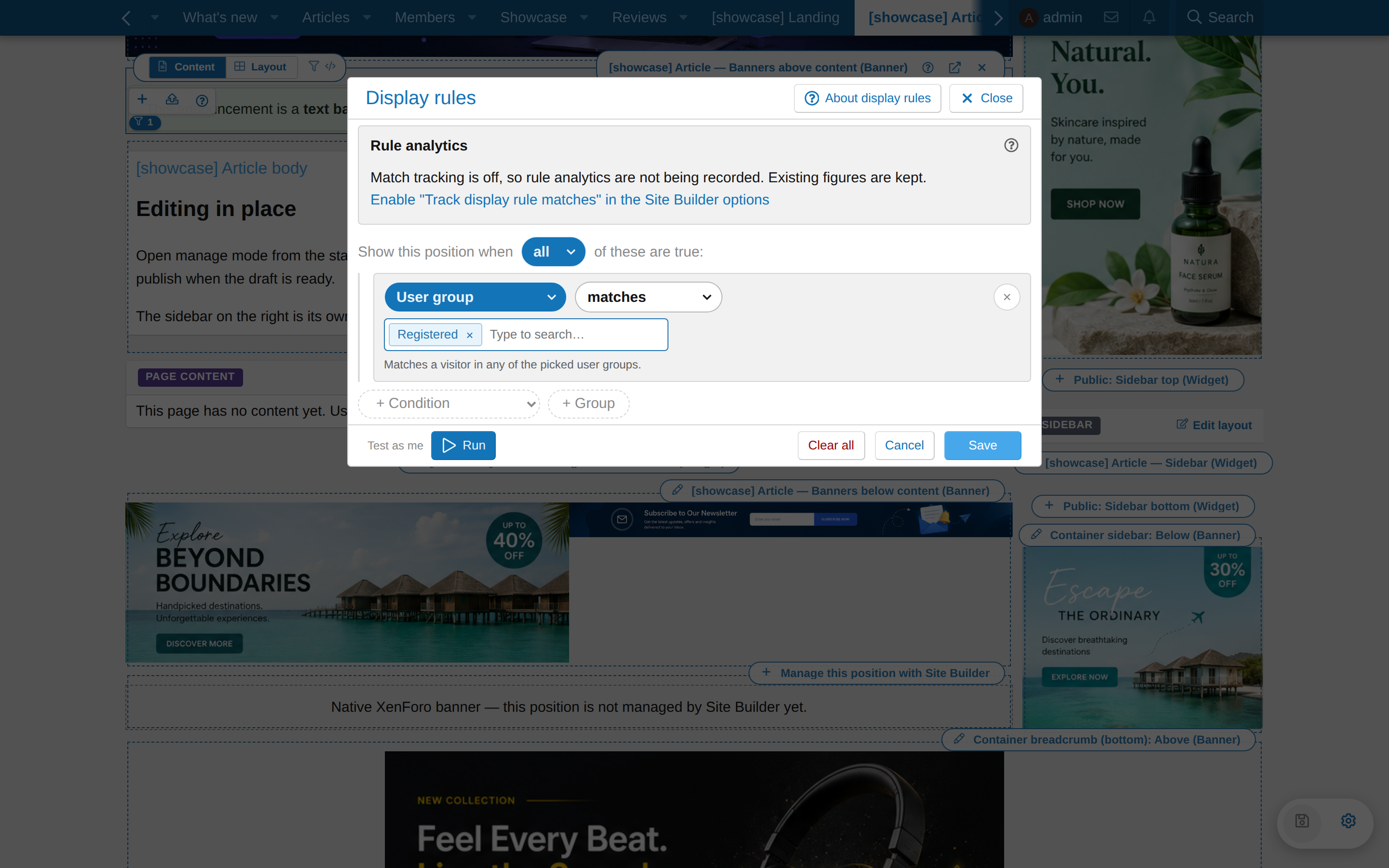

The editor in the board's dark style:
The pieces, top to bottom:
- The group's lead sentence — Show this cell when (a page, position or item editor names its own target), the all/any pill, of these are true: — says how the conditions combine. Switch it per group with the pill, all (AND) or any (OR); + Group nests a group one level down — a bordered block with its own sentence and pill — and a nested group starts on all (AND); switch it to any (OR) when its conditions are alternatives. “Registered AND (desktop OR tablet)” is two rows — a User group row and a Device type row with Desktop and Tablet picked.
- Each condition is a sentence row: the type pill — User group, Device type, Country, Page / node context, Time / date schedule — switched on the row, then the matches / does not match pill, then the values. The pill is on every type: matches shows the target to visitors who satisfy the condition, does not match to everyone except them. A round × on the row removes it. + Condition appends another row to the group; its picker names the type the new row starts as.
- Date and time values live in one chip: press it and a popover holds the date window, the weekday pills, the time of day and a note — Empty = no limit. Visitor's time zone. — closed by Done. Device types are toggle chips, and a chip carries a summary of what is picked.
- The footer carries the test row — Test as me and Run — then Clear all (once a rule exists), Cancel and Save. Save closes the editor and the rule joins the draft — it goes live when the position is published, like every editor change (see Drafts, publish and undo). On a phone the editor's header and footer collapse to icon buttons and stay stuck to the viewport's edges while the rule scrolls.
A rule written by an earlier version keeps working: the editor shows its old Exclude choice as does not match, and its next save stores the rule in the new shape.
The whole how-to, on a cell:
- Open the cell's rules — from the filter icon on its Layout-mode toolbar, or from its badge in Content mode once it has rules.
- Press Add rule on the empty state. The editor gives you a condition row to fill.
- The row starts as a User group condition; switch its type on the row, fill the values, and flip the matches / does not match pill when the condition should hide instead of show.
- Press Save — the editor closes and the rule joins the draft.
- Publish the position: the rule goes live when the position is published, like every editor change (see above).
The criteria
Five condition types ship with the editor, and every one of them carries the matches / does not match pill.
User group — pick one or more groups. Matches shows the target only to members of the listed groups; does not match shows it to everyone except them.
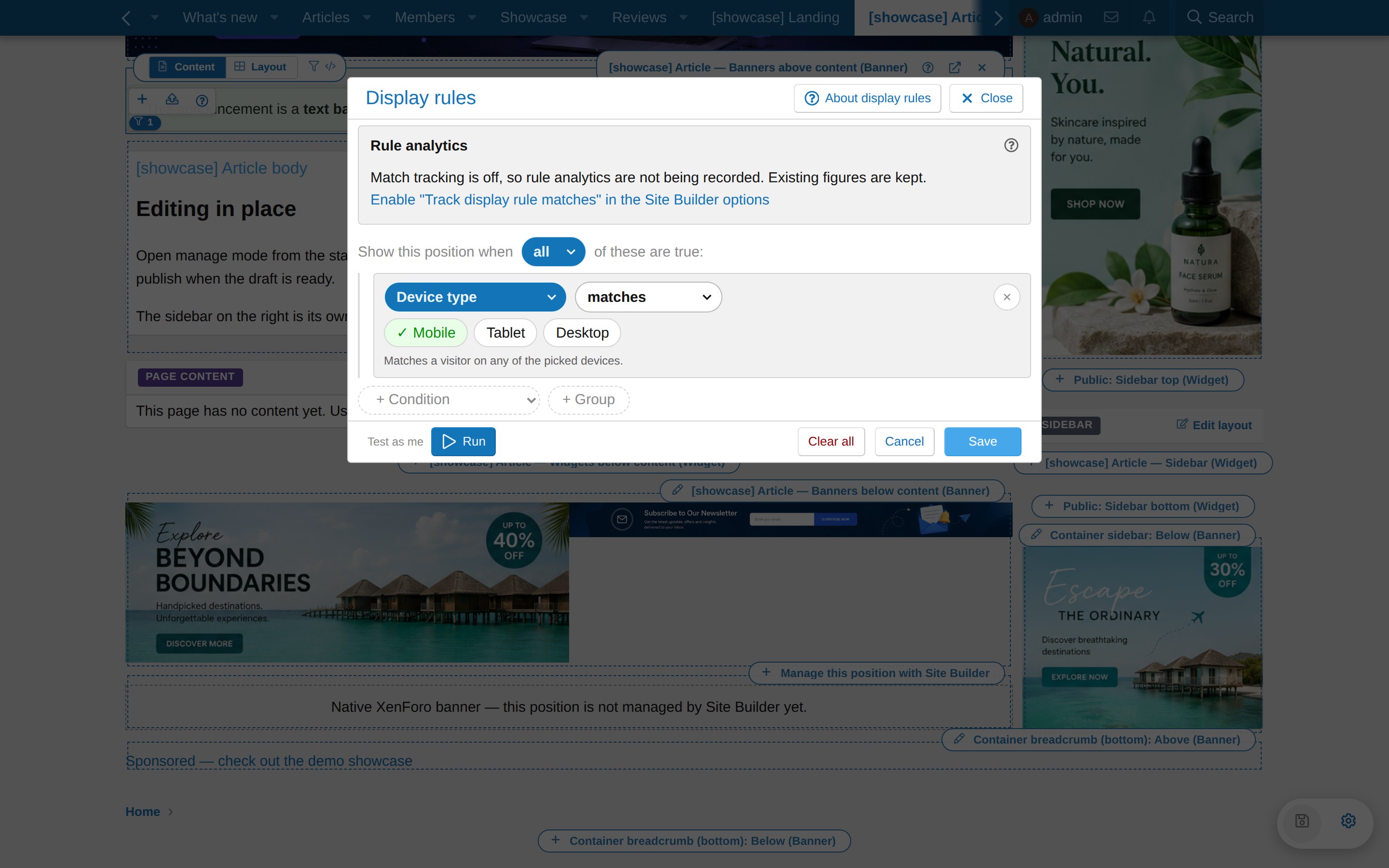
Device type — toggle chips for Mobile, Tablet and Desktop; the condition matches when the visitor's device is one of the picked ones. The device comes from the screen width (below 768px mobile, below 1200px tablet, otherwise desktop), kept in a cookie; a first visit uses the browser's user agent. The server decides the rule, so a hidden target is not in the page. Matches shows the target to those devices only, does not match hides it from them.
Page / node context — target by where the visitor is. Routes takes route names (comma-separated; a route also covers the pages under it), and Nodes picks a forum, category or page by name, threads of a forum included. A match on either wins — and the pill applies here too, so does not match keeps the target off the listed routes and nodes.

Time / date schedule — show the target only in a date range, on selected weekdays, and/or between two times of day. The values live in one chip; press it for the popover — the date window, the weekday pills, the time of day and the note Empty = no limit. Visitor's time zone. — and Done closes it. Times are read in the visitor's own timezone.

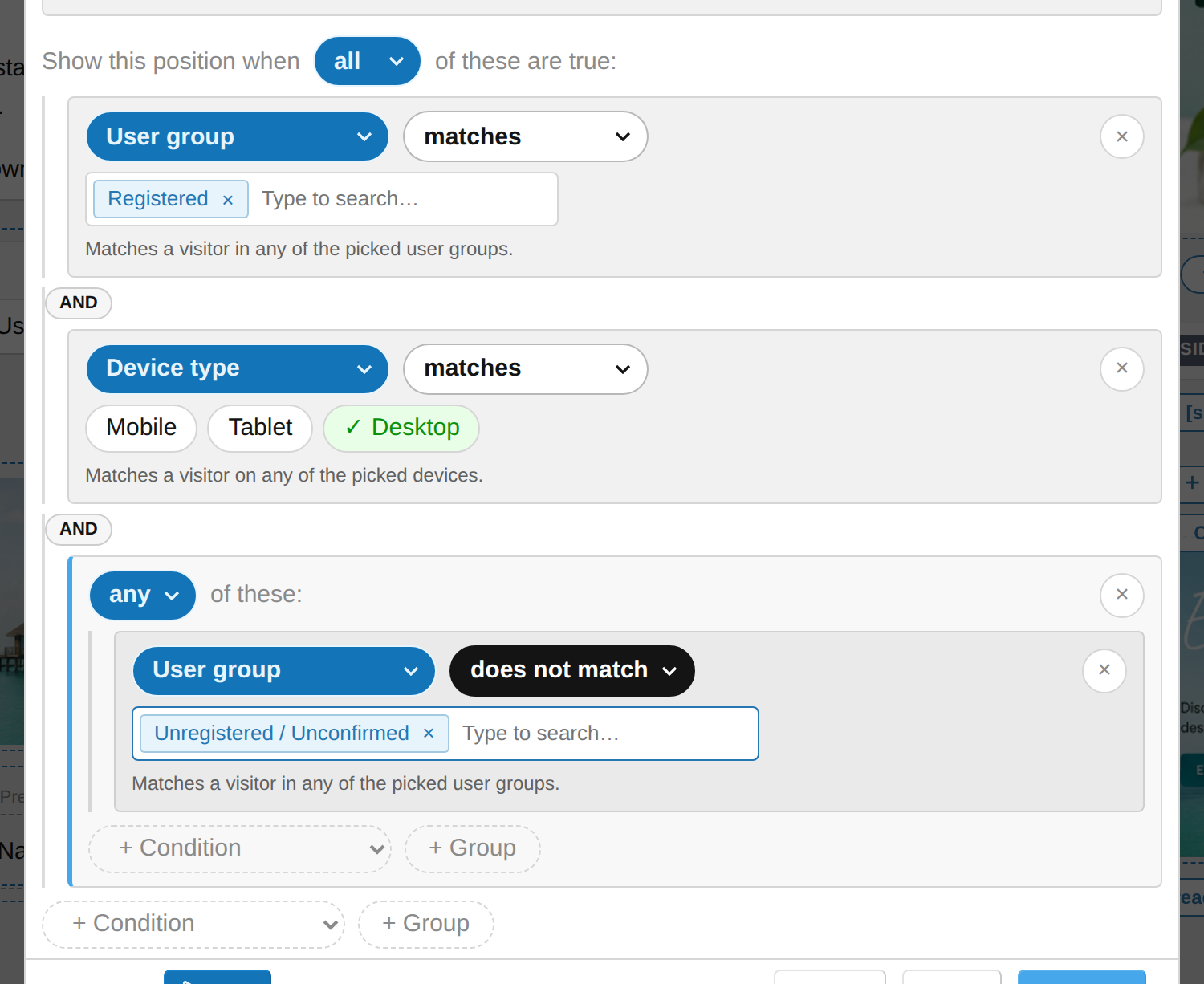
Conditions combine with AND and OR groups, and a group nests one level deep. The rule below joins two conditions with AND and nests the guests condition in a group of its own as does not match — it shows the target only to registered members on desktop who are not in the guests group:
Country targets the visitor's country, with the same matches / does not match pill. It reads the GeoLite2 database. On a fresh board the database comes with a MaxMind account ID and GeoLite2 license key under Options → [Site Builder] GeoIP Options: saving them downloads it, and a scheduled job checks for a newer build every 6 hours and downloads it only when MaxMind has published one. When there is no database, or the visitor's IP has no match in it, the country is unknown: a matches country condition does not match, and a does not match one does.
Test the rule before you save
The footer's test row — Test as me, Run — dry-runs the rule you are editing, unsaved changes included, against you, the account you are signed in with:
- Press Run. The verdict renders above the footer — “Rule matched — this content would be shown.” or “Rule did not match — this content would be hidden.” — and the Conditions disclosure under it opens the per-condition breakdown, marking each group and condition:
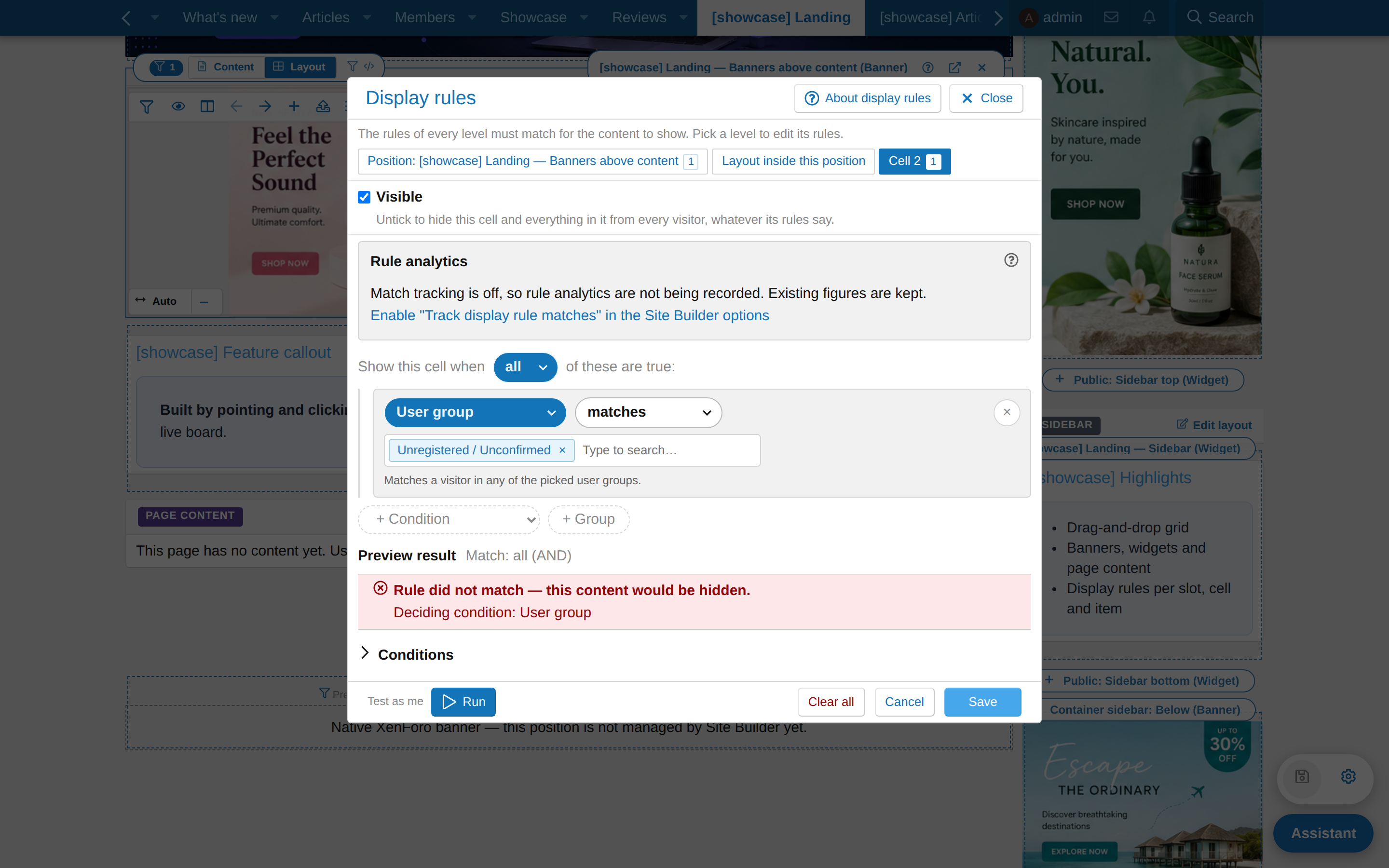
- Read the verdict against yourself: a rule aimed at another user group never matches you — save it and check the page as a real visitor to confirm.
- To test a device condition, close the rule editor, switch the device in the staff bar and run it again — here a rule whose Device type condition does not match Mobile, shown on the desktop, then hidden on the phone:
Hiding a parent cell on phones
Device rules reach the whole cell, sub-cells included. To take a cell off phones, press the eye in the parent cell's bottom-right corner controls in Layout mode on the phone layout: it writes the same rule in one press. Or write the rule yourself:
- Give the cell a rule with a Device type condition set to does not match and Mobile picked.
- Split the cell in two — see Cell management and layout. The rule stays on the parent cell, so it covers both halves — see Splitting a ruled cell.
- Switch the editor to the phone with the phone icon in the staff bar: the parent collapses, and in Layout mode the cell around it shows a chip — a crossed-out eye and a number (Show the cells hidden inside this cell on this device.). The chip brings the cell back with one press — it removes the phone condition from the cell's rule, a staged change the next publish keeps.

Design and mobile covers the layouts for each device.
Splitting a ruled cell
Splitting a cell that has display rules does not move them. The rules and the Visible switch stay on the parent cell, the new sub-cells start without rules, and the item moves into the first sub-cell. The rules therefore govern both halves, not just the first.
To limit only one half, give that sub-cell rules of its own; the parent's rules still apply on top of them. To treat the halves differently, remove the rules from the parent cell and give each sub-cell its own.
The chip on a parent cell (a crossed-out eye and a number) counts how many cells it brings back on the device you are viewing. A hidden cell counts 1, and a hidden cell that is itself split counts every cell inside it. Show hidden cells (N) in the position's header counts the same way.
Drafts and publishing
Rules stage with the draft of the position they belong to — a position's own, a cell's, and the draft holding a placed item. The editor's Save stages; Publish on the position makes the rules live; discarding the draft takes them back. See Drafts, publish and undo for the draft model, and Cell management and layout for the cells the rules attach to.